Auto Trading Bots
How to Run Sniper Bot V3 on Volatility 100 Index
Connect your API token, configure virtual loss triggers, and run sniper bot v3 on volatility 100 with strict risk limits and money management settings.
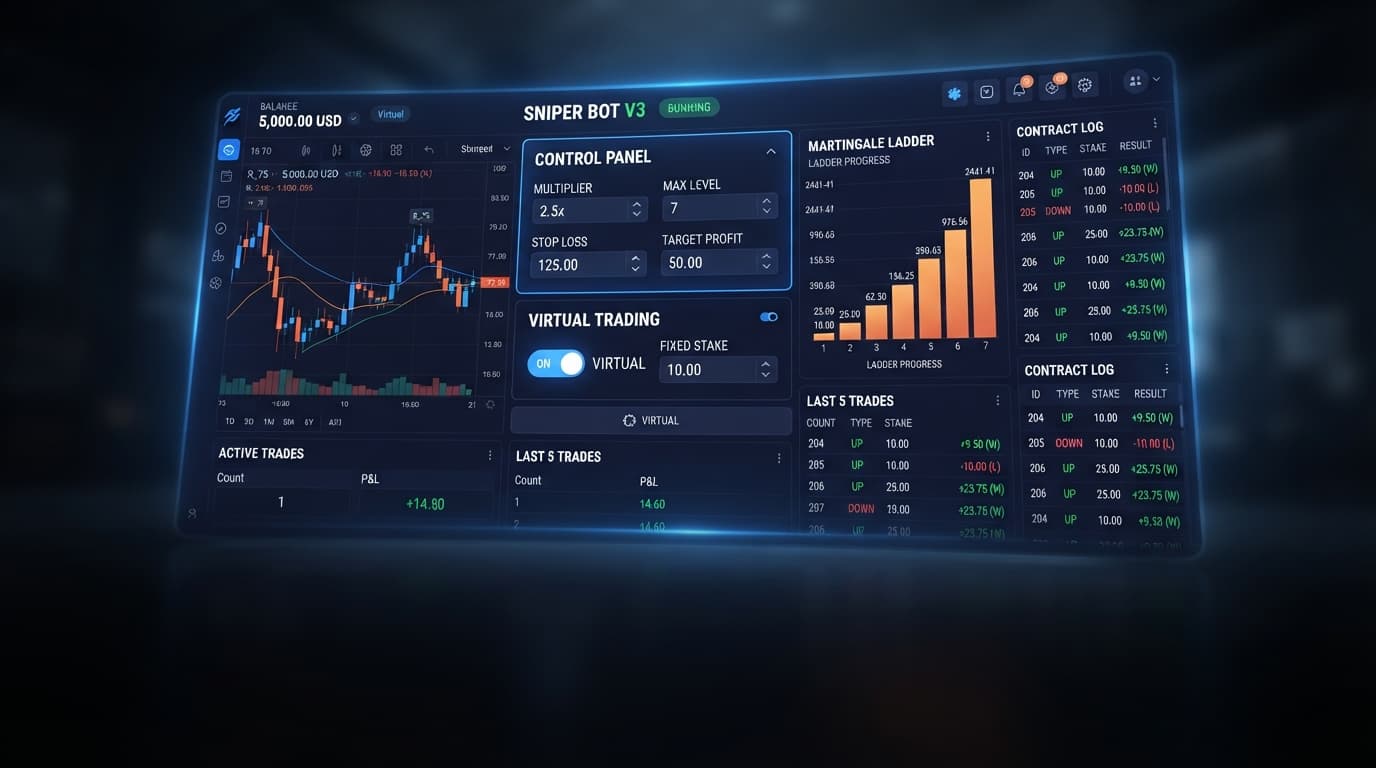
To run sniper bot v3 on volatility 10 1s with maximum risk control, set your MODE to Fixed Stake, enter your base trade size under UNIT, and use VIRTUAL LOSS (in a row) to filter out bad runs on paper before risking live capital. This setup routes test trades through your VIRTUAL TOKEN and triggers live contracts on the Volatility 10 (1s) Index only after your paper loss threshold is met. It keeps your real balance protected during choppy market swings while placing trades at exact one-second tick intervals.
Running automated strategies on synthetic markets doesn't require complex martingale ladders that threaten your entire account. Using a virtual trading filter combined with fixed trade sizes gives you a disciplined execution model where you decide exactly when real money enters the market.
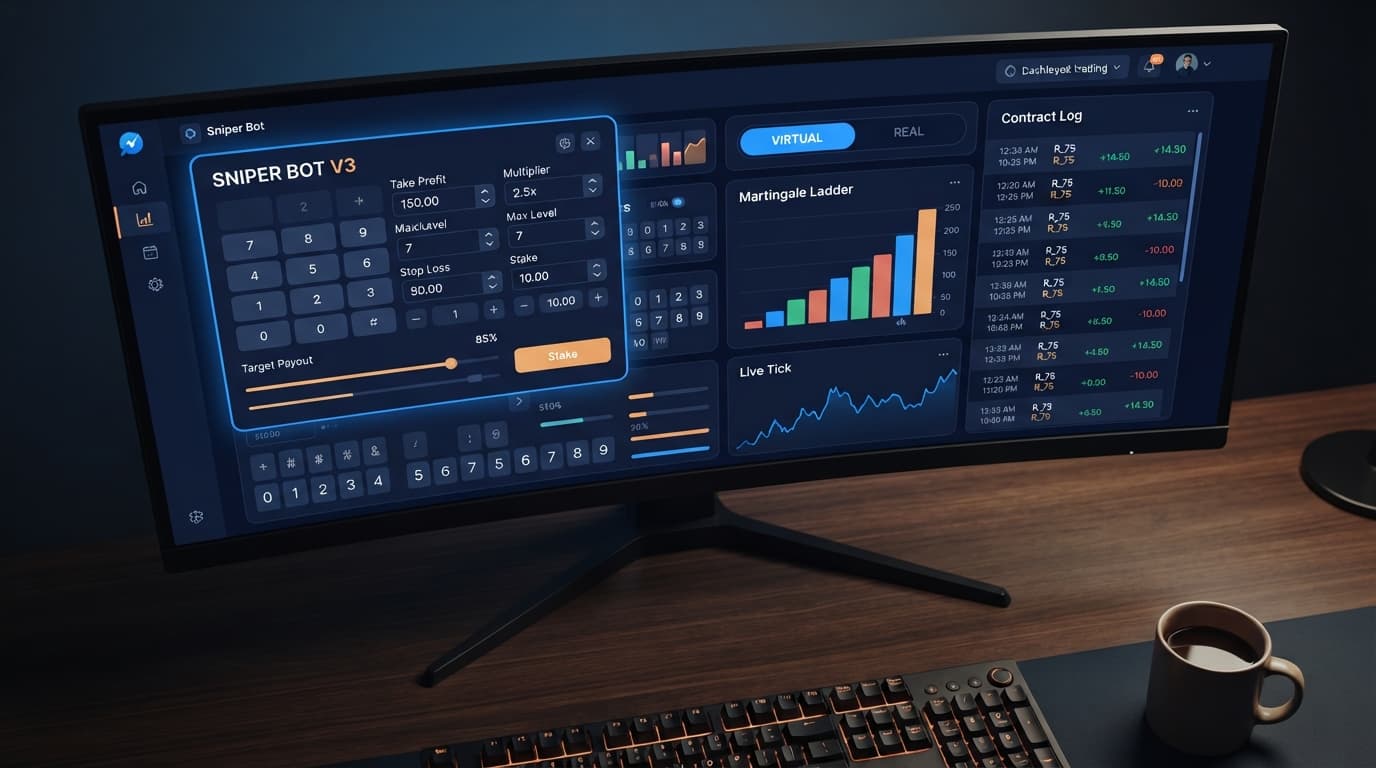
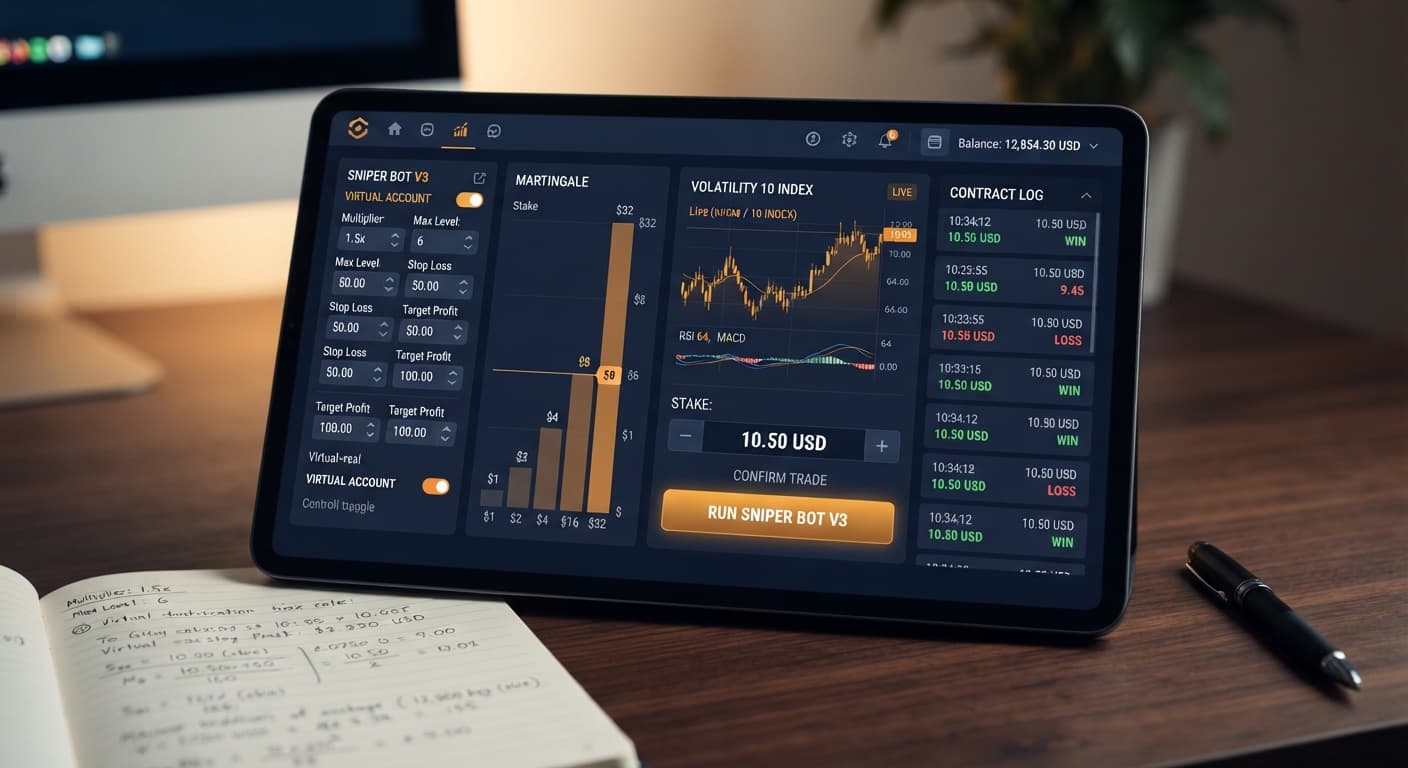
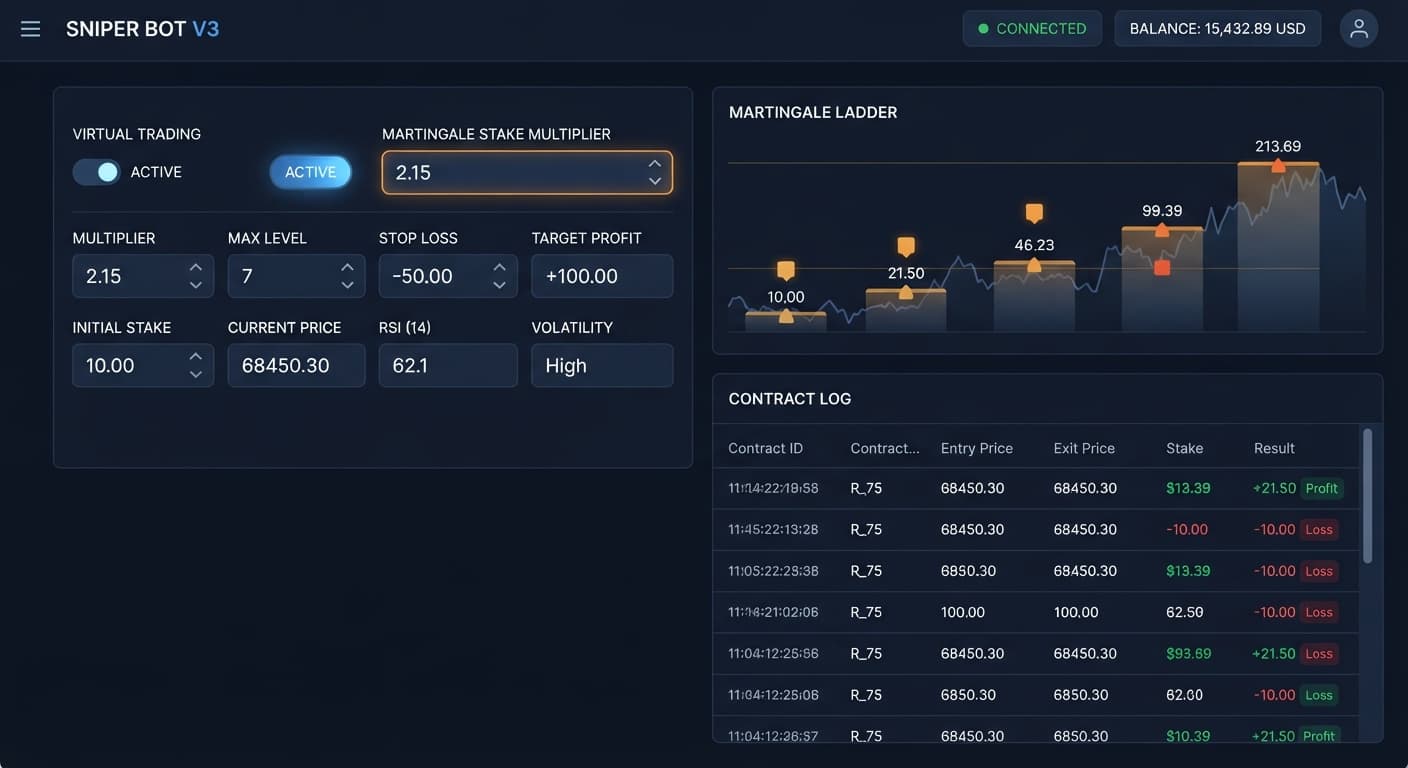
When you open the bot interface, you're looking at three core parameter blocks: Strategy Selection, Money Management, and Virtual Filtering. Understanding how these sections interact keeps you from placing unexpected live trades.
+-----------------------------------------------------------------------+
| 1. STRATEGY & MARKET SELECTION                                        |
| Market: Volatility 10 (1s) Index | Contract: DIGITEVEN / CALL / etc.  |
+-----------------------------------------------------------------------+
| 2. MONEY MANAGEMENT PANEL                                             |
| MODE: Fixed Stake                | UNIT: $1.00                        |
| MULTIPLIER: (Disabled in Fixed)  | MAX LEVEL: 1                       |
| WHEN MAX LEVEL: Reset            | % OF BALANCE: 0                    |
| STOP LOSS: $10.00                | TARGET PROFIT: $5.00               |
+-----------------------------------------------------------------------+
| 3. VIRTUAL FILTER & EXECUTION TIMING                                  |
| VIRTUAL LOSS (in a row): 3       | VIRTUAL TOKEN: [Demo API Key]      |
| BACK TO VIRTUAL: IF REAL WIN     | BOT STOP AFTER: 20 Trades          |
| DELAY AFTER WIN: 2s              | DELAY AFTER LOSE: 1s               |
+-----------------------------------------------------------------------+
The Money Management block controls your financial footprint per contract. Setting MODE to Fixed Stake disables the MULTIPLIER scaling, so your stake stays static regardless of win or loss sequences. Contrast this with martingale or D'Alembert progressions where stakes expand after losses; here, UNIT determines your flat stake for every live trade.
The Virtual Filter block acts as your buffer zone. Instead of sending orders straight to your main account, the system uses your VIRTUAL TOKEN to analyze raw tick data on paper. Controls like VIRTUAL LOSS (in a row) and BACK TO VIRTUAL dictate when the bot flips between paper execution and live balance routing.
Experienced traders using deriv bots often skip virtual filtering and get caught in consecutive drawdowns right out of the gate. Configuring these controls correctly prevents your balance from absorbing initial market noise.
Start by selecting the Volatility 10 (1s) Index from the market dropdown list. This index ticks exactly once per second, offering predictable timing cycles compared to standard volatility indices that update every two seconds.
Next, select your target contract type. Options include:
For a basic fixed-stake virtual setup, select DIGITEVEN. Digit outcomes on Deriv synthetic indices are independent random draws from 0 through 9. Past digit frequency does not change the probability of the next tick, so your strategy relies purely on timing and risk management rather than predicting mathematical patterns.
Navigate to the money management panel to establish your base numbers:
Using Fixed Stake eliminates the primary danger of automated trading: rapid capital depletion. A standard martingale sequence doubling after every loss can wipe an account during an unexpected losing streak, as a 2x multiplier escalates stakes far faster than most traders calculate. Fixed Stake ensures a bad run costs only the sum of your base units.
Virtual trading is the main line of defense in Sniper Bot V3. It lets you observe market ticks on paper without putting capital on the line.
[ Market Ticks ] ---> [ Virtual Execution (Demo Token) ]
                             |
                             v
                  Has VIRTUAL LOSS (in a row) hit threshold?
                             |
                   +---------+---------+
                   | NO                | YES
                   v                   v
        [ Continue Paper ]     [ Switch to Real Account ]
                                       |
                                       v
                             [ Trade Resolves ]
                                       |
                   +-------------------+-------------------+
                   | IF REAL WIN                           | IF REAL LOSE
                   v                                       v
      [ Reset to Paper Trading ]             [ Action based on BACK TO VIRTUAL ]
Fill out the virtual filter fields with exact values:
Alternative options for BACK TO VIRTUAL include:
For flat-stake configurations, IF REAL WIN or IF REAL WIN/LOSE offer the tightest risk boundaries for binary bots.
Never start an automated session without hard capital limits typed into the interface. Set your limits in the protective fields before touching the launch control:
Inserting execution delays prevents rapid-fire contract placement when ticks spike. On a one-second market like Volatility 10 1s, back-to-back trades without delay can cycle through your stop loss in seconds during erratic price swings.
Before starting, confirm your setup parameters match the recommended baseline values:
| Control Name | Value for Baseline Setup | Purpose |
|---|---|---|
| Market | Volatility 10 (1s) Index | Specifies 1-second tick asset |
| MODE | Fixed Stake | Keeps trade amount identical on every entry |
| UNIT | 1.00 | Base stake per trade |
| VIRTUAL LOSS (in a row) | 3 | Required paper losses before live execution |
| BACK TO VIRTUAL | IF REAL WIN | Drops back to paper mode after taking a profit |
| STOP LOSS | 10.00 | Hard exit threshold for live balance protection |
| TARGET PROFIT | 5.00 | Hard exit target for session gains |
| DELAY AFTER WIN | 2 | Pauses bot execution after a winning contract |
| DELAY AFTER LOSE | 1 | Pauses bot execution after a losing contract |
Paste your real API token into the primary token field. Always test settings on a Deriv demo account before risking real funds. Once verified on demo, click the Start button to initiate paper monitoring.
Understanding the precise timing of tick generation and API order placement helps you verify whether your configuration running sniper bot v3 on volatility 10 1s is executing properly.
Because the Volatility 10 1s index publishes a tick every 1.0 seconds, contract evaluations, virtual counter checks, and API order transmissions occur on a strict timeline. The following table tracks a complete cycle from paper filtering through live execution and reset.
| Second | Tick | Execution Mode | Contract State | System Action & State Change |
|---|---|---|---|---|
| 0.0s | Tick 1 | Virtual (Paper) | Opened | Order sent over API using VIRTUAL TOKEN |
| 1.0s | Tick 2 | Virtual (Paper) | Closed (Loss) | Paper trade resolves loss; VIRTUAL LOSS (in a row) count = 1 |
| 2.0s | Tick 3 | Virtual (Paper) | Opened | Next paper contract triggered immediately |
| 3.0s | Tick 4 | Virtual (Paper) | Closed (Loss) | Paper trade resolves loss; VIRTUAL LOSS (in a row) count = 2 |
| 4.0s | Tick 5 | Virtual (Paper) | Opened | Next paper contract triggered immediately |
| 5.0s | Tick 6 | Virtual (Paper) | Closed (Loss) | Paper loss threshold (3) met; state shifts to REAL |
| 6.0s | Tick 7 | Real (Live) | Opened | Live contract placed on account using main token at $1.00 UNIT |
| 7.0s | Tick 8 | Real (Live) | Closed (Win) | Live contract wins; TARGET PROFIT updated; BACK TO VIRTUAL triggers |
| 8.0s | Tick 8 | Pause State | Cooldown | DELAY AFTER WIN countdown begins (2 seconds) |
| 9.0s | Tick 9 | Pause State | Cooldown | DELAY AFTER WIN finishes |
| 10.0s | Tick 10 | Virtual (Paper) | Opened | Counter resets to 0; paper trading resumes |
Notice how the bot manages transitions between paper modes and real execution. Between second 0.0s and second 6.0s, three consecutive paper losses occur. During this window, zero dollars leave your live balance. The system connects directly to Deriv over their official API to evaluate prices and track virtual losses in real time without incurring financial risk.
At second 6.0s, the condition set in VIRTUAL LOSS (in a row) is satisfied. The bot opens a real contract on Tick 7. When that trade wins at second 7.0s, the BACK TO VIRTUAL setting kicks in, returning the bot to paper monitoring while enforcing your two-second delay before analyzing the next tick.
Once your session is running, you need to verify that trades are routing to the correct account modes and troubleshoot any execution delays.
                        [ Trade Execution Log ]
                                   |
         +-------------------------+-------------------------+
         |                                                   |
[ Virtual Log Entry ]                               [ Real Log Entry ]
- Token: Demo Key                                   - Token: Live Key
- Stake: Paper Balance                              - Stake: Real Balance (UNIT)
- Counter: Increments on Loss                       - Resets per BACK TO VIRTUAL
         |                                                   |
         v                                                   v
(Normal Paper Operation)                            (Normal Live Operation)
Check the on-screen execution log during the first few seconds of operation:
If the bot stalls or fails to place contracts, check these common points:
Running sniper bot v3 on volatility 10 1s with flat stakes and paper filtering keeps your trade execution mechanical and structured. Test your complete configuration on a virtual account first to verify timing cycles before committing real funds.
To test this configuration without risking capital, run Sniper Bot V3 on a virtual balance first.
If you don't have an active trading account, create a free Deriv account to generate your API token.
Trading involves risk. Past performance does not guarantee future results.
Advanced automated trading bot for Deriv with Rise/Fall, Higher/Lower, Touch/No Touch and Digit strategies, plus martingale, anti-martingale, Fibonacci and D'Alembert money management.
Open Sniper Bot V3 →Set your MODE to Fixed Stake in the money management panel and enter your base trade size under UNIT. This disables multiplier scaling so your stake stays flat for every live trade.
It runs test trades on paper using your virtual token to filter out bad runs before risking live capital. The bot only triggers live contracts on the Volatility 10 (1s) Index after your specified paper loss threshold is met.
The Volatility 10 (1s) Index ticks exactly once per second, which offers predictable timing cycles compared to standard indices that update every two seconds.
You can protect your balance by using a virtual trading filter combined with fixed trade sizes instead of complex martingale ladders. Setting a virtual loss threshold and stop loss helps keep your real capital safe from initial market noise.
Guides closest to this one.
Connect your API token, configure virtual loss triggers, and run sniper bot v3 on volatility 100 with strict risk limits and money management settings.
Enter your monetary target into the TARGET PROFIT field on the panel to configure your sniper bot v3 take profit settings and lock in gains.
Set VIRTUAL LOSS to 3 when running sniper bot v3 on volatility 10 to filter out choppy price movement and protect your account balance from flat ticks.