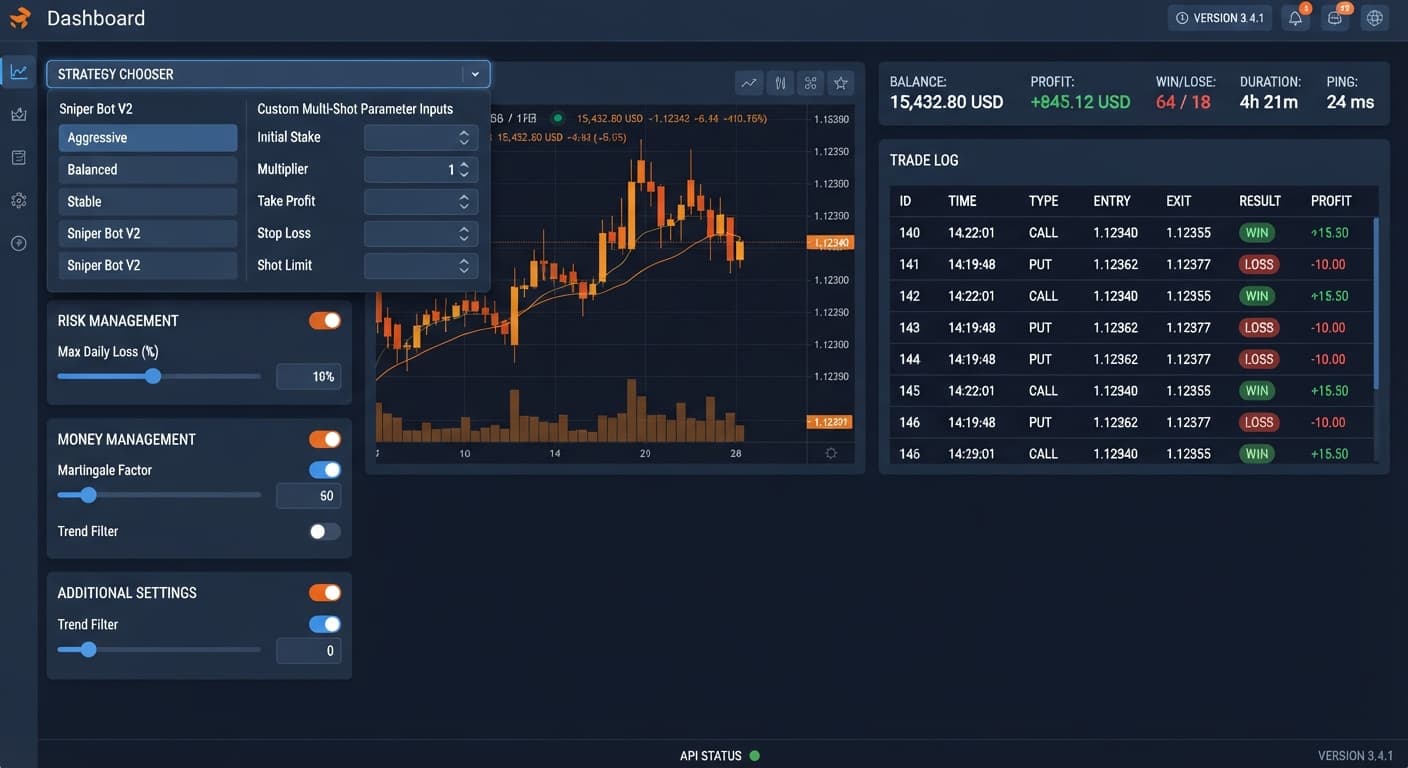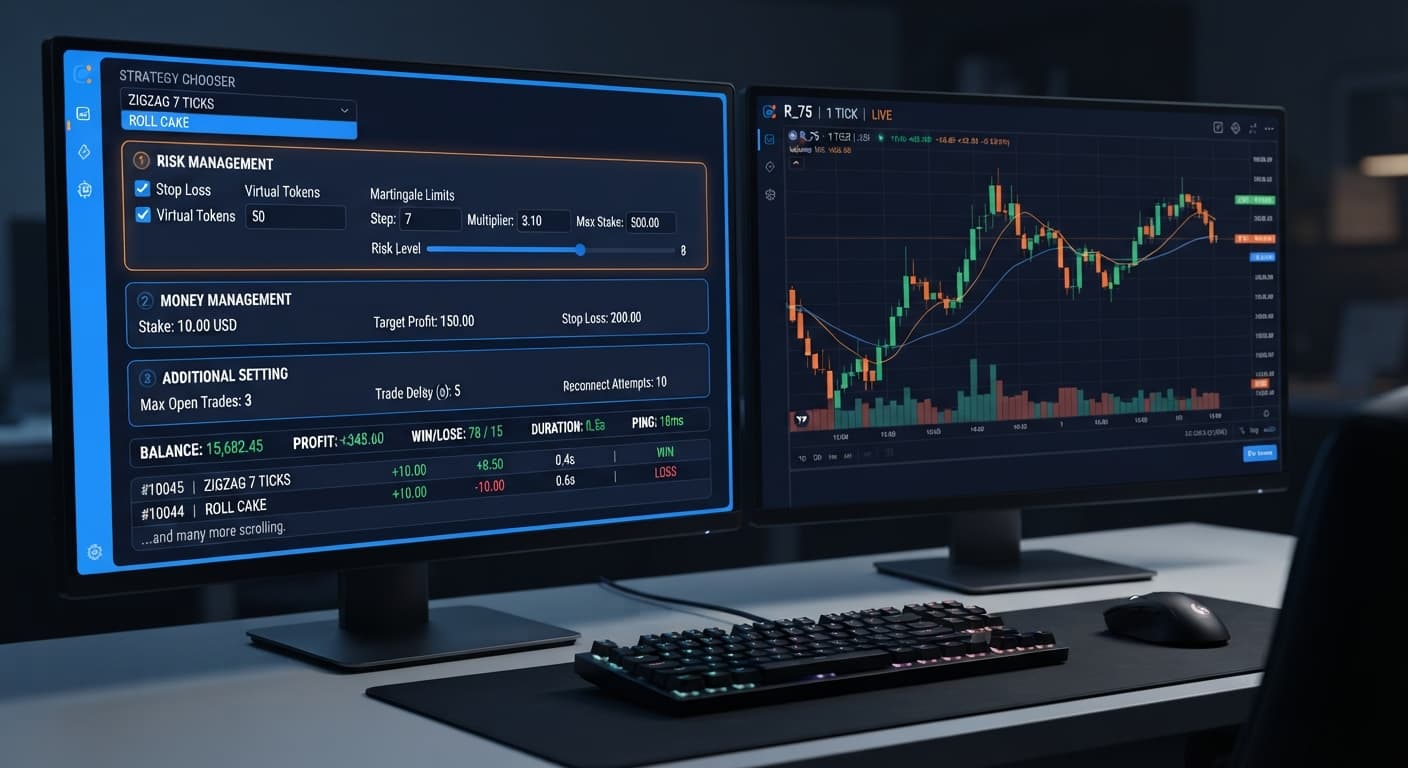
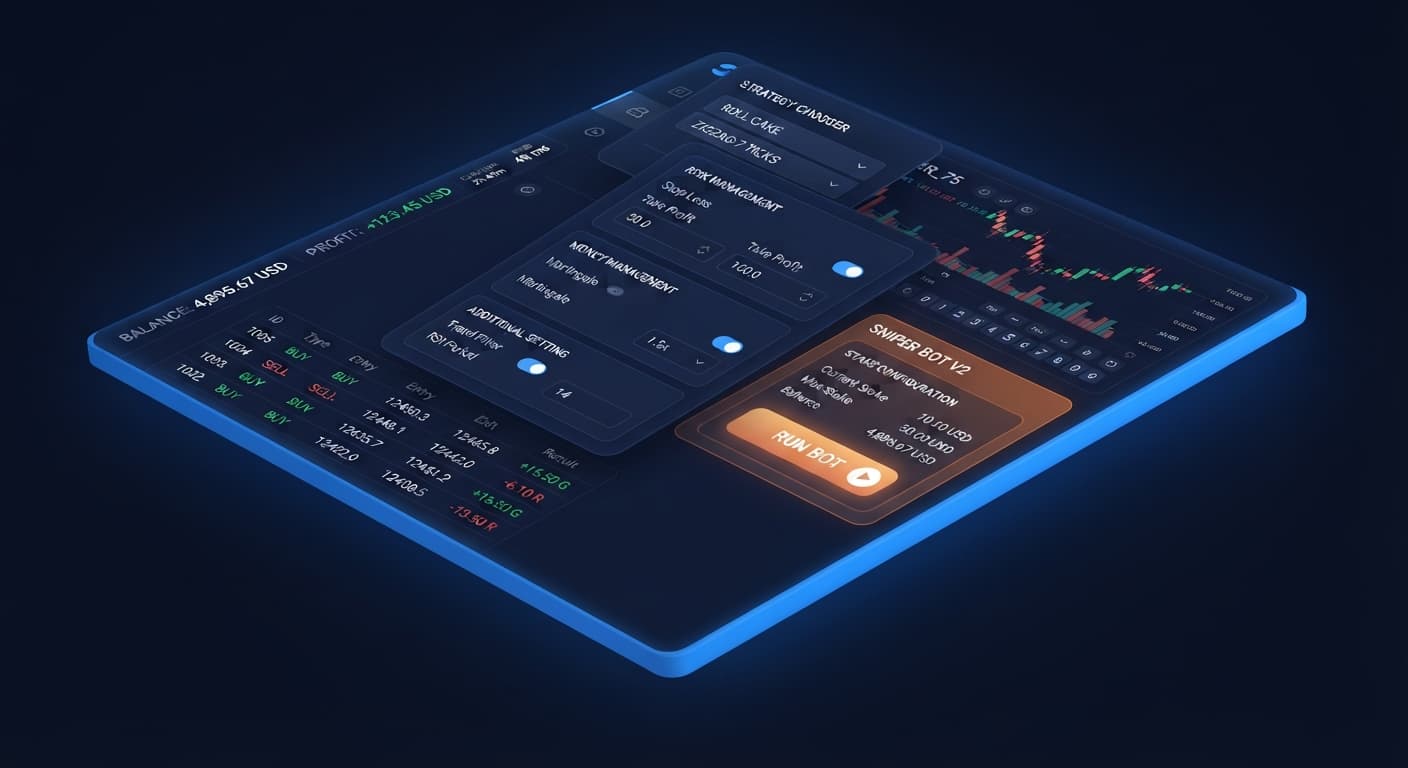
Auto Trading Bots
Sniper Bot V2 India: Zero-Knowledge Beginner Guide
Run sniper bot v2 india directly in a browser without software or fees. Configure strategies, risk management, and API tokens safely on Deriv.
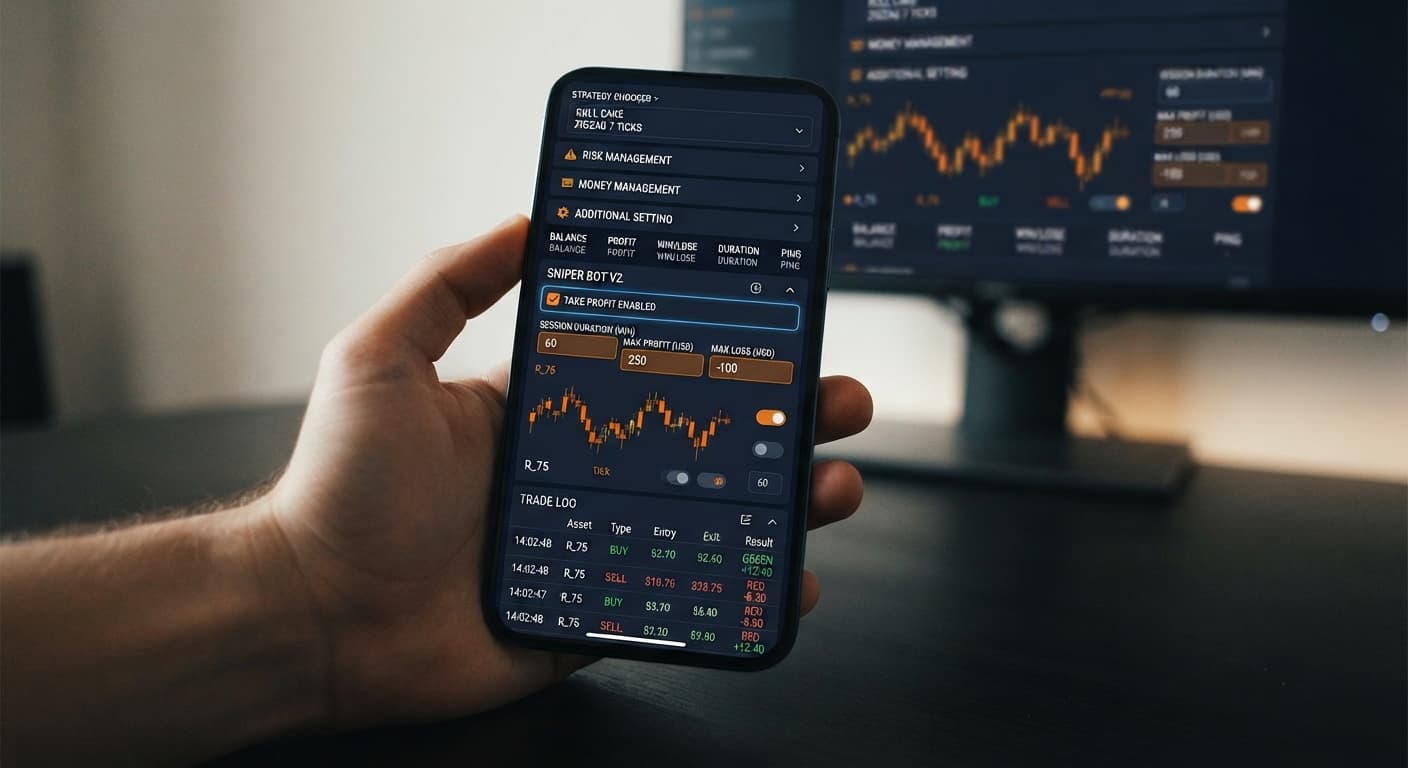
To set up sniper bot v2 take profit settings correctly, open the MONEY MANAGEMENT panel, enter your numeric target into the Take Profit field, and tick the enable checkbox directly next to it. Typing a numerical target without ticking the box leaves the session uncapped, causing the bot to ignore your profit goal entirely. Securing session targets when using deriv bots requires completing both the text entry and the checkbox toggle before clicking start.
When running automated execution on synthetic indices, leaving a run open-ended is the fastest way to turn a positive session negative. Synthetic index ticks are independent random draws, meaning past tick sequences never guarantee future outcomes. Without an active profit cap, a sequence of successful contracts will inevitably collide with a sudden drawdown streak, wiping out accumulated gains before you can manually hit the stop button.
Most traders who run automated binary bots assume that entering a number into a target field is enough to safeguard their bankroll. On this interface, the target input field and the activation trigger are completely separate controls. The input field simply stores your numeric target, while the enable checkbox tells the execution loop to compare your live balance gains against that target after every closed contract.
If you leave that checkbox unticked, the script executes continuously. You might step away from your screen with a $15 profit on a $100 account, expecting the system to wrap up the session automatically. When you return, you might find the session still running, having passed through your target, suffered an extended run of adverse ticks, and triggered multiple recovery trades.
Automated execution works best when you define fixed start and end points. You want to capture a specific, realistic gain relative to your total session balance—typically between 2% and 5%—and immediately disconnect. Relying on manual intervention to halt a winning run usually leads to over-trading, over-exposing your account to consecutive market swings.
Follow these steps to configure your session caps properly before sending any execution commands. Make sure you test this setup on a Deriv virtual balance first to verify how the bot responds when reaching your target.
Paste your token into the Your Token Here field at the top of the interface and click VALIDATE. The BALANCE display in the header strip will update to show your current account funds, and the PING readout will display your active connection latency in milliseconds.
Under the STRATEGY CHOOSER drop-down menu, select the trading pattern for your session. You can choose continuous-entry patterns like RISE/FALL - ROLL CAKE or pattern-matching modes like EVEN/ODD - ZIGZAG 7 TICKS. The ZIGZAG variants analyze tick stream sequences and enter trades only after detecting seven alternating consecutive values, whereas ROLL CAKE modes place trades continuously based on the core contract direction.
Open the MONEY MANAGEMENT panel and locate the Stake input box. Type in your initial contract amount. For proper risk control, keep this value at a small fraction of your total balance—ideally under 1% to 2% of your available funds—to account for potential consecutive contract losses.
In the MONEY MANAGEMENT panel, locate Take Profit (with enable checkbox). Click the checkbox so it shows a checkmark, then type your exact profit threshold into the adjacent text field. For example, if you are running a $200 account and want to stop after making $10, enter 10.
Locate Stop Loss (with enable checkbox) within the same panel. Click its enable checkbox to activate the downside cap, then type your maximum allowable session loss into the field. Never run a bot with Take Profit enabled while leaving Stop Loss unchecked. Always set your stop loss value higher than your take profit value to give your chosen strategy room to handle normal market statistical variance without tripping your session exit prematurely.
Before letting a strategy run unattended, you need to confirm that your session caps and connections are active. The interface provides real-time visual feedback across the header strip, panels, and log outputs.
| Interface Element | Expected Screen State | Operational Meaning | Action Required |
|---|---|---|---|
| Take Profit (with enable checkbox) | Checkbox contains a checkmark; field shows numeric value (e.g., 10.00) |
Target profit limit is active and tracked by execution loop | If checkbox is clear, click it immediately to activate protection |
| Stop Loss (with enable checkbox) | Checkbox contains a checkmark; field shows numeric value (e.g., 20.00) |
Session downside cap is armed and monitoring drawdown | Confirm value leaves sufficient cushion for initial stake variance |
| BALANCE | Displays balance currency and live balance amount | Bot is successfully authorized with Deriv API | Verify balance matches your target account (Demo vs Real) |
| PING | Displays positive millisecond value (e.g., 45ms) in green/white |
Active WebSocket connection established | If blank or red, re-paste token into Your Token Here and click VALIDATE |
| PROFIT | Updates dynamically after each settled trade | Real-time net profit/loss for the current active run | Monitor progress toward your configured target cap |
| Trade Log Output | Displays contract purchase details and tick outputs | Bot actively analyzing or entering contracts | If log stays silent on ZIGZAG modes, wait for pattern to complete |
Once your sniper bot v2 take profit settings are armed, the automated script evaluates your performance after every closed trade. Here is precisely what happens on your screen when your profit goal is hit:
10 and the final winning contract brings your total net gain to $10.40, the readout will reflect $10.40.Because the system checks profit limits immediately upon contract settlement, your actual final gain may slightly exceed your entered target if the final winning trade pays out more than the exact difference remaining. This is normal execution behavior. The vital outcome is that no new contracts are purchased after that threshold is crossed.
Even experienced traders make basic errors when configuring execution caps on free deriv bot software. Avoid these two common misconfigurations to keep your trading capital safe.
The most frequent error is typing a value into the Take Profit or Stop Loss text box while leaving the enable checkbox unticked. The input box stores the number, but the bot's internal checks skip target evaluations unless the checkbox boolean returns true. If you start a run with clear checkboxes, your PROFIT header can climb past your target and crash back down during a bad run, completely ignoring the number written in the box.
Sniper Bot V2 includes a paper-trading mechanism via the ADDITIONAL SETTING panel. By entering a virtual token and setting Virtual Loss (in a row), you can force the bot to trade on virtual funds until a specific number of consecutive losses occurs before switching to your live account.
However, if you set BACK TO VIRTUAL to IF REAL WIN, the bot will instantly switch back to virtual trading after a single live win. If your Take Profit cap is set higher than the profit generated by that single live win, the bot will revert to paper trading while keeping your session open.
Traders often get confused when they see the bot suddenly stop placing real-money trades long before their overall Take Profit figure is reached. If your goal is to hit a specific dollar target on your real balance in one continuous run, review your BACK TO VIRTUAL selection:
IF REAL WIN: Switches execution back to the virtual token immediately after any winning real-money contract.IF REAL LOSE: Switches back to virtual execution only after a real-money trade loses.IF REAL WIN/LOSE: Switches back to virtual after any real contract finishes, regardless of outcome.NEVER: Keeps execution on your real balance once switched, until your Take Profit or Stop Loss cap is hit.If you are using delayed recovery parameters—such as setting martingale will active after X real loss, setting a martingale multiplier, or defining a maximum martingale level—be aware that stake escalations can happen quickly. If a losing streak occurs, stakes increase rapidly. Having an active, checked Take Profit and Stop Loss ensures that a recovery sequence stops the moment your balance reaches your cap, preventing unnecessary exposure on subsequent trades.
Always test your complete configuration on a demo account first. Verify that the bot halts execution automatically when your target profit figure is reached before deploying real funds.
Test these controls risk-free by launching Sniper Bot V2 on a Deriv demo account.
If you don't have an active account yet, create a free Deriv account to start testing.
Trading involves risk. Past performance does not guarantee future results.
Related: Sniper Bot V2 vs Multi Shot: Preset vs Custom Setup (2026)
The original Sniper automated trading bot for Deriv — a named strategy chooser with ROLL CAKE and ZIGZAG 7 TICKS entry patterns across Rise/Fall, Higher/Lower, Touch/No Touch and digit contracts, with virtual-token paper trading before real stakes.
Open Sniper Bot V2 →You probably forgot to tick the enable checkbox next to the Take Profit field. Typing a numeric target isn't enough because the input field and activation trigger are separate controls, and leaving the box unticked causes the bot to ignore your profit goal entirely.
Open the MONEY MANAGEMENT panel, type your numeric target into the Take Profit field, and tick the enable checkbox right next to it. You've got to complete both actions before clicking start, otherwise your session will stay uncapped.
You'll want to capture a realistic gain relative to your total session balance, which is typically between 2% and 5%. Once you hit that target, the bot should immediately disconnect to prevent sudden drawdowns.
Leaving a run open-ended on synthetic indices can quickly turn a positive session negative. Because past tick sequences don't guarantee future outcomes, a successful run will eventually hit a drawdown streak that wipes out your gains if you don't use a profit cap.
Guides closest to this one.
Run sniper bot v2 india directly in a browser without software or fees. Configure strategies, risk management, and API tokens safely on Deriv.
Sniper bot v2 vs multi shot: compare 11 preset strategies with virtual loss switching against custom manual contract construction on Deriv.
Is sniper bot v2 safe? Yes, but only if you enable stop loss checkboxes and virtual loss parameters to prevent continuous trading and capital loss.